
This repository holds
- instructions for building a Dash Gauge panel, as seen in the Delorean Time Machine,
- and a suitable firmware.
This panel is meant as an add-on for the CircuitSetup Time Circuits Display as it relies on the TCD's keypad to control many of its functions.


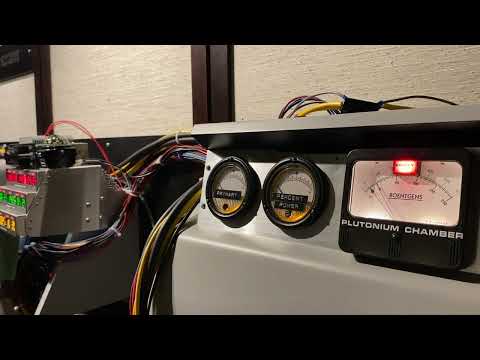 |
|---|
| Click to watch the video |
For information on the hardware, please see here.
Firmware features include
- support for analog gauges (with software-controlled arbitrary pointer position) and digital gauges (Empty/Full, without arbitrary pointer position)
- selectable "full" percentages per analog gauge (besides for fun, useful for adjusting inaccurate readings)
- selectable threshold percentage for Empty/Full position for digital gauges
- Time Travel function, triggered by button, Time Circuits Display (TCD) or via Home Assistant
- support for Side Switch to play "empty" and "refill" sequences
- Automatic refill timer, automatic alarm mute timer (both optional)
- support for door switches for playing sounds when opening/closing the car doors, optionally through the TCD (and hence through your stereo)
- wireless communication with Time Circuits Display; used for synchronized time travels, alarm, night mode, fake power and remote control through TCD keypad
- music player: Play mp3 files located on an SD card [requires TCD connected wirelessly or HA/MQTT for control]
- advanced network-accessible Config Portal for setup (http://gauges.local)
- Home Assistant (MQTT) support
- built-in OTA installer for firmware updates and audio files
- 🐇 🥚 🥚 🆕
The A10001986 repository is the upstream source for CircuitSetup's releases. There are no differences between A10001986 and CircuitSetup releases of the same version.
For information on updating the firmware of your Dash Gauges, see here.
- Re-arrange WiFi Configuration page for a better user experience
- BTTFN: "Hostname of TCD" now defaults to "timecircuits" instead of being empty. As a result, factory-fresh Dash Gauges now connect to a TCD in the network without any user configuration changes.
- Holding Button 1 during (real)power-on and, while still holding Button 1, flipping the side-switch exactly six times within 10 seconds resets all settings, except the Gauge Hardware settings, to factory defaults.
- New sound-pack (DG07)
- Sound-pack uploads are done through the top file selector, and no longer through the bottom one. The bottom one is for custom mp3 file upload only.
- Future firmware updates may only consist of one single file instead of "main firmware" plus "sound-pack". Firmware updates will require an SD card. In order to update to versions beyond 2.00, version 2.00 must be installed first.
Some key features of your Dash Gauges require an SD card. The first step is therefore to put a good-quality ("endurance", "industrial", "long life", ...) and empty microSD card into the card slot. The SD card must be inserted before powering up the Dash Gauges. It is not recognized if inserted while the Dash Gauges are running. Furthermore, do not remove the SD card while the Dash Gauges are powered.
SD/SDHC/SDXC cards up to 32GB are supported. The card needs to be FAT32-formatted (not exFAT). Transcend, Sandisk Ultra and Industrial, Verbatim Premium and Samsung Pro Endurance SDHC cards usually work fine. Some SD cards might not be recognized due to off-specs initialization quirks. SDUC cards are not supported.
The second step is to establish access to the configuration website ("Config Portal") in order to configure your Dash Gauges:
- Power up the device and wait a few seconds.
- Connect your computer or handheld device to the WiFi network "DG-AP".
- Navigate your browser to http://gauges.local or http://192.168.4.1 to enter the Config Portal.
Your Dash Gauges know two ways of WiFi operation: Either they create their own WiFi network or they connect to a pre-existing WiFi network.
As long as the device is unconfigured, it creates its own WiFi network named "DG-AP". This mode of operation is called "Access point mode" or "AP-mode". In this mode, computers/handhelds can connect to your Dash Gauges in order to access the Config Portal, but ways of communication end right here. There is no inter-prop-communication (BTTFN) and no HA/MQTT.

It is ok to leave it in AP-mode, predominantly if used stand-alone. To keep operating your Dash Gauges in AP-mode, simply do not configure a WiFi network connection as described below.
More...
Please do not leave computers/handhelds permanently connected to the Dash Gauges in AP-mode. These devices might think they are connected to the internet and therefore hammer your Dash Gauges with DNS and HTTP requests which might lead to disruptions.
If you wish for your device to remain in AP-mode, please select a suitable WiFi channel on the Config Portal's "WiFi Configuration" page. See here.
In AP-mode, the Dash Gauges can switch off WiFi to save power. See here.
In this case, you can connect your Dash Gauges to your home WiFi network. This allows for inter-prop-communication (BTTFN) and HA/MQTT.

Click on "WiFi Configuration" and either select a network from the top of the page or enter a WiFi network name (SSID), and enter your WiFi password. After saving the WiFi network settings, the device reboots and tries to connect to your configured WiFi network.
More...
If there are several APs with identical SSID nearby, you can select a specific AP by its BSSID (AP's MAC address). You can either manually find out your AP's BSSID and enter it or have it filled out automatically: Click "Scan for networks", then "Show all APs". If you click on an AP, its BSSID will be copied into BSSID field in the form below. To see which AP is which, hover over the name to see its BSSID as a tooltip.
The device requests an IP address via DHCP, unless you entered valid data in the fields for static IP addresses (IP, gateway, netmask, DNS). If the device is inaccessible as a result of incorrect static IPs,
- power-down the device,
- press the Time Travel button on the Control Board (located behind the left gauge) and keep it pressed,
- power-up the device,
- wait until the "Empty" light flashes briefly,
- flip the Side Switch twice within 10 seconds ("Empty" will light up after the second flip),
- then release the Time Travel button.
This procedure causes static IP data to be deleted; the device will return to using DHCP.
If the Dash Gauges fail to connect, they fall back to AP-mode. You can trigger another connection attempt by briefly pressing Button 1 (located behind the "Percent Power" gauge on the control board).
In this case and with no Time Circuits Display at hand, keep your Dash Gauges operating in AP-mode.
If you have a TCD, you can connect your Dash Gauges to the TCD's own WiFi network:

This setup is meant for cars, but suitable for any place with no WiFi network. See here for details.
After completing WiFi setup, your Dash Gauges are ready for use; you can also continue configuring them to your personal preferences through the Config Portal.
The "Config Portal" is the Dash Gauges' configuration web site.
 |
|---|
| The Config Portal's main page |
It can be accessed as follows:
- Connect your computer or handheld device to the WiFi network "DG-AP".
- Navigate your browser to http://gauges.local or http://192.168.4.1 to enter the Config Portal.
- (For proper operation, please disconnect your computer or handheld from DG-AP when you are done with configuring your Dash Gauges. These devices can cause high network traffic, resulting in severe performance penalties.)
-
Connect your handheld/computer to the same (WiFi) network to which the Dash Gauges are connected, and
-
navigate your browser to http://gauges.local
More...
Accessing the Config Portal through this address requires the operating system of your handheld/computer to support Bonjour/mDNS: Windows 10 version TH2 (1511) [other sources say 1703] and later, Android 13 and later; MacOS and iOS since the dawn of time.
If connecting to http://gauges.local fails due to a name resolution error, you need to find out the Gauges' IP address. In order to do so, hold Button 1 on the Control Board for 2 seconds until you hear a double-beep, release the button and listen. The IP address will be spoken out loud. Then, on your handheld or computer, navigate to http://a.b.c.d (a.b.c.d being the IP address as just given by the Dash Gauges) in order to enter the Config Portal.
In the main menu, click on "Settings" to configure your Dash Gauges.
 |
|---|
| Click for full screenshot |
A full reference of the Config Portal is here.
The firmware needs to know the type of gauges installed; by default, power output to the gauges is disabled.
In order to configure the Dash Gauges for your specific hardware,
- hold the Time Travel button on the Dash Gauge's control board for 5 seconds (until a beep is emitted),
- then enter the Config Portal as described above, and click on "Settings".
Near the bottom of this page, there are three drop-down widgets, one for each gauge. Carefully select the type for each of your gauges, and click on "Save".
After this step, your Dash Gauges are ready to be used.
The Dash Gauges' basic function is to show some values on its gauges, and to play an "empty" alarm after a time travel.
If the Dash Gauges are operated stand-alone:
- To quickly trigger the "empty" sequence, flip the side switch of your Dash Gauges. To "refill", flip that switch again.
- To trigger a Time Travel sequence, press the Time Travel button located behind the "Primary" gauge on the rear of the Control Board, next to the SD card reader; you can also connect an external button.
Other features require a CircuitSetup Time Circuits Display and/or a connection to Home Assistant for control.
The Dash Gauges' built-in sound effects can be substituted by your own sound files stored on the SD card. These files will be played back directly from the SD card during operation, so the SD card has to remain in the slot.
Your replacements need to be put in the root (top-most) directory of the SD card, be in mp3 format (128kbps max) and named as follows:
- "startup.mp3". Played when the Dash Gauges are connected to power and finished booting;
- "refill.mp3". Played during the "refill"-sequence;
- "alarm.mp3". Played when the alarm sounds (triggered by a Time Circuits Display via BTTFN or MQTT);
- "dooropen.mp3"/"doorclose.mp3": Played when the state of the door switch changes.
The firmware supports some additional user-provided sound effects, which it will load from the SD card. If the respective file is present, it will be used. If that file is absent, no sound will be played.
- "key1.mp3" - "key9.mp3": Will be played when you issue a
950x(x = 1-9) or 900x (x being 1, 3, 4, 6, 7 or 9) command on the TCD or through HA/MQTT.
The seemingly odd way of accessing keyX files in the 900x range is because of synchronicity with other props, especially the TCD and its keymap where the Music Player occupies keys 2, 5, 8. Likewise,
9002,9005and9008control the Dash Gauges' Music Player (prev, play/stop, next).
Those files are not provided here. You can use any mp3, with a bitrate of 128kpbs or less.
Replacements and custom sounds can either be uploaded through the Config Portal or copied to the SD card’s root folder using a computer.
Uploading through the Config Portal works exactly like installing the sound-pack; on the main menu, click "Update & Upload". Afterwards choose one or more mp3 files to upload using the bottom file selector, and click "UPLOAD". The firmware will store the uploaded mp3 files on the SD card.
To delete a file from the SD card, upload a file whose name is prefixed with "delete-". For example: To delete "key3.mp3" from the SD card, upload a file named "delete-key3.mp3"; the file's contents does not matter, so it's easiest to use a newly created empty file. The firmware detects the "delete-" part and, instead of storing the uploaded file, it throws it away and deletes "key3.mp3" from the SD card.
For technical reasons, the Dash Gauges must reboot after mp3 files are uploaded in this way.
The maximum bitrate for mp3 files is 128kbps.
The uploaded files are stored to the root folder of the SD card, so this way of uploading cannot be used to upload tracks for the Music Player.
The firmware contains a simple music player to play mp3 files located on the SD card. This player is controlled by a TCD connected through BTTFN, or through HA/MQTT.
Note
The maximum mp3 bitrate is 128kpbs. The free Adapter⤴ tool can re-encode your mp3 files in batches.
To be recognized, your mp3 files need to be organized in music folders named music0 through music9. The folder number is 0 by default, i.e. the player starts searching for music in folder music0. The folder number can be changed in the Config Portal ("Settings") or through the TCD keypad (905x) or HA/MQTT (MP_FOLDER_x).
The names of the audio files must only consist of three-digit numbers, starting at 000.mp3, in consecutive order. No numbers should be left out. Each folder can hold up to 1000 files (000.mp3-999.mp3).
Since manually renaming mp3 files is somewhat cumbersome, the firmware can do this for you: Just copy your files with their original filenames to a music folder of your choice; when selecting that folder, the files will be sorted alphabetically and renamed according to the 3-digit name scheme. (If you want your tracks in a specific order, you must rename them, for instance by inserting a letter or number at the start.) The renaming process can take a while (11 minutes for 1000 files in bad cases). Mac users are advised to delete the ._ files from the SD before putting it back into the Dash Gauges as this speeds up the process. While the renaming is in progress, the Dash Gauges' right-most analog gauge shows the percentage of files yet to be processed.
To add files to a music folder later, just copy them to the folder and delete the corresponding cache file "musicXc" (X being the folder number) located in the top-most folder. That way that the firmware knows that something has changed and will re-examine the folder.
To start and stop music playback, enter keypad command 9005 on your TCD. Keypad command 9002 jumps to the previous track, 9008 to the next one.
By default, the tracks are played in order, starting at 000.mp3, followed by 001.mp3 and so on. Through keypad command 9555 on the TCD, you can switch to shuffle mode, in which the tracks are played in random order. Keypad command 9222 switches back to consecutive mode.
Keypad command 9888 re-starts the player at track 000, and 9888xxx (xxx = three-digit number) jumps to track #xxx.
See here and here for a list of controls of the music player.
While the music player is playing music, other sound effects are disabled/muted. Initiating a time travel stops the music player. The TCD-triggered alarm will, if so configured, sound and stop the music player.
The TCD can communicate with the Dash Gauges wirelessly, via the built-in "Basic-Telematics-Transmission-Framework" over WiFi. It can send out information about a time travel and an alarm. Furthermore, the TCD's keypad can be used to remote-control the Dash Gauges.
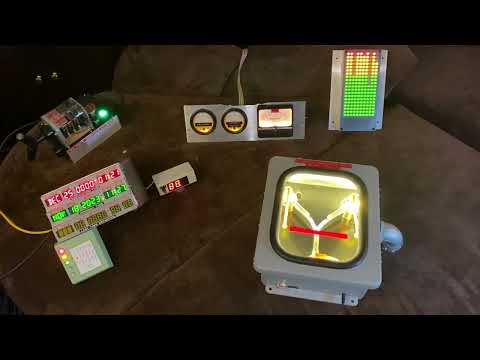 |
|---|
| Click to watch the video |
BTTFN requires the props all to be connected to the same network, such as, for example, your home WiFi network, or the TCD acting as access point. BTTFN does not work over the Internet.
More...
The term "WiFi network" is used for both "WiFi network" and "ip subnet" here for simplicity reasons. However, for BTTFN communication, the devices must be on the same IP subnet, regardless of how they take part in it: They can be connected to different WiFi networks, if those WiFi networks are part of the same ip subnet.
To connect your Dash Gauges to the TCD, just enter the TCD's hostname - usually "timecircuits" - in the Hostname of TCD field in the Dash Gauges' Config Portal. On the TCD, no special configuration is required.
Afterwards, the Dash Gauges and the TCD can communicate wirelessly and
- play time travel sequences in sync,
- both play an alarm-sequence when the TCD's alarm occurs,
- the Dash Gauges can be remote controlled through the TCD's keypad (command codes 9xxx),
- the Dash Gauges queries the TCD for fake power and night mode, in order to react accordingly if so configured,
- pressing the dash gauges' Time Travel button can trigger a synchronized Time Travel on all BTTFN-connected devices, just like if that Time Travel was triggered through the TCD.
| Function | Code on TCD |
| "Refill"1 | 9 |
| Set "full" percentage of "Primary" gauge (01-99%) | 9101 - 9199 |
| Reset "full" percentage of "Primary" gauge | 9100 |
| Set "full" percentage of "Percent Power" gauge (01-99%) | 9401 - 9499 |
| Reset "full" percentage of "Percent Power" gauge | 9400 |
| Set "full" percentage of "Roentgens" gauge (01-99%) | 9701 - 9799 |
| Reset "full" percentage of "Roentgens" gauge | 9700 |
| Set volume level (00-20) | 9300 - 9320 |
| Music Player: Play/Stop | 9005 |
| Music Player: Previous track | 9002 |
| Music Player: Next track | 9008 |
| Music Player: Select music folder (0-9) | 9050 - 9059 |
| Music Player: Shuffle off | 9222 |
| Music Player: Shuffle on | 9555 |
| Music Player: Go to track 0 | 9888 |
| Music Player: Go to track xxx | 9888xxx |
| Play "key1.mp3" | 9501 / 9001 |
| Play "key2.mp3" | 9502 |
| Play "key3.mp3" | 9503 / 9003 |
| Play "key4.mp3" | 9504 / 9004 |
| Play "key5.mp3" | 9505 |
| Play "key6.mp3" | 9506 / 9006 |
| Play "key7.mp3" | 9507 / 9007 |
| Play "key8.mp3" | 9508 |
| Play "key9.mp3" | 9509 / 9009 |
| Say current IP address | 9090 |
| Disable Car mode1 | 9990 |
| Enable Car mode1 | 9991 |
| Reboot the device1 | 9064738 |
| Unlock "gauge type" selection in Config Portal | 9317931 |
1: Not supported through HA/MQTT INJECT command
Here is a cheat sheet for printing or screen-use.
A wired connection only allows for synchronized time travel sequences, no other communication takes place, and there is no way to remote-control the Gauges through the TCD by wire. A wireless connection over BTTFN/WiFi is much more powerful and therefore recommended over a wired connection.
For wiring information, please see here.
With the wiring in place, head to the Config Portal and set the option TCD connected by wire. On the TCD, the option [TT-OUT] "signals Time Travel" must be checked.
More...
You can connect both the TCD and a Time Travel button to the Dash Gauges. However, the button should not be pressed when the option TCD connected by wire is set, as it might yield unwanted results.
By means of MQTT, the Dash Gauges can be remote controlled through commands sent to bttf/dg/cmd.
The Dash Gauges support MQTT protocol versions 3.1.1 and 5.0.
The Dash Gauges can be controlled through messages sent to topic bttf/dg/cmd. Supported commands are
TIMETRAVEL: Start a time travelEMPTY: "Drain" Plutonium and trigger alarmREFILL: Refill the Plutonium chamberPLAY_DOOR_OPEN,PLAY_DOOR_CLOSED: Play respective door sound; these commands are only executed if the option Enable use of door switches in the Config Portal is unchecked. The sound is played through the TCD if so configured in the Config Portal.MP_PLAY: Starts the Music PlayerMP_STOP: Stops the Music PlayerMP_NEXT: Jump to next trackMP_PREV: Jump to previous trackMP_SHUFFLE_ON: Enables shuffle mode in Music PlayerMP_SHUFFLE_OFF: Disables shuffle mode in Music PlayerMP_FOLDER_x: x being 0-9, set folder number for Music PlayerMP_REQSTATUS: Publish current music player status to bttf/dg/mpstatusVOLUME_UP,VOLUME_DOWN: Increase/decrease volume by a notchVOLUME_SET_x: Set volume to x% (x=0-100)PLAYKEY_x: Play keyX.mp3 (from SD card), X being in the range from 1 to 9.STOPKEY: Stop playback of keyX file. Does nothing if no keyX file is currently played back.INJECT_x: See immediately below.
This command allows remote control of the Dash Gauges through HA/MQTT in the same way as through the TCD keypad by injecting commands in the Dash Gauges' command queue (hence the name). Commands are listed here; nearly all are supported. For example:
To set "full" percentage of "Percent Power" gauge to 50% (9450), issue the following command: INJECT_9450
To play "key2.mp3" (9502), issue INJECT_9502
To select the 'music1' folder (9051), issue INJECT_9051
The Refill (9 or 009) command is not supported through INJECT; use the REFILL MQTT-command instead.
MQTT requires a "broker" such as mosquitto, Cassandana, RabbitMQ, Ejjaberd, HiveMQ or EMQX, to name a few. For proper operation with low latency, running the broker on your local network is recommended.

The broker's address needs to be configured in the Config Portal. It can be specified by either domain or IP (IP preferred). The default port is 1883. If a different port is to be used, append a ":" followed by the port number to the domain/IP, such as "192.168.1.5:1884".
If your broker supports protocol version 3.1.1, stick with 3.1.1. Version 5.0 has no advantages, but more overhead.
If your broker does not allow anonymous logins, a username and password can be specified.
Limitations: TLS/SSL not supported; ".local" domains (MDNS, Bonjour) not supported; the machine running the broker must respond to PING (ICMP) echo requests. MQTT is disabled when the Dash Gauges are operated in AP-mode or when connected to the TCD run in AP-Mode (TCD-AP).
If your Dash Gauges, along with a Time Circuits Display, are mounted in a car or other places without a local WiFi network, the following network configuration is recommended:

This configuration can easily be achieved by putting both the TCD and the Dash Gauges in Car Mode:
- Set Power save timer to 0 (zero) in the "AP-mode settings" section on the WiFi Configuration page
- Put your TCD in Car Mode by issuing keypad command
991.
One-time configuration steps:
- Enter the Config Portal on the Dash Gauges, click on Settings and check that the hostname of the TCD (usually "timecircuits") is present in the Hostname of TCD under Wireless communication (BTTF-Network) settings.
- Furthermore, on the WiFi Configuration page, check that the TCD's WiFi network name (SSID; usually "TCD-AP") and password (if the TCD is configured with a password) are present under Car mode settings.
If everything is in place, you can enable Car mode on the Dash Gauges by holding Button 1 for six seconds, until a triple-beep sounds, and then release it. The Dash Gauges will reboot and attempt to connect to the TCD's AP. (Button 1 is located behind the "Percent Power" gauge on the control board.)
You can switch between your "normal" (home, iPhone, ..) WiFi connection and Car Mode holding Button 1 for six seconds as described, or through the Config Portal.
To access the Dash Gauges' Config Portal in Car mode, connect your handheld or computer to the TCD's WiFi network ("TCD-AP"), and direct your browser to http://gauges.local.
If that fails...
If connecting to http://gauges.local fails due to a name resolution error, hold _Button 1_ for 2 seconds and listen, or go to the TCD's keypad menu, navigate to "BTTFN CLIENTS", and look for the Dash Gauges' IP address there; then direct your browser to the IP by using the URL http://a.b.c.d (a-d being the IP address spoken or displayed on the TCD display)
The Dash Gauges have a connector for two door switches. These switches trigger door open/close sounds.
For information on wiring, see here, section "Door switches".
There are several options for door sounds in the Config Portal, please see here.
The Config Portal offers an option for WiFi power saving for AP-mode (ie when the device acts as an access point). This option configures a timer after whose expiration WiFi is switched off; the device is no longer transmitting or receiving data over WiFi.
The timer can be set to 0 (which disables it; WiFi is never switched off; this is the default) or 10-99 minutes.
After WiFi has been switched off due to timer expiration, it can be re-enabled by briefly pressing Button 1, in which case the timers are restarted (ie WiFi is again switched off after timer expiration). Button 1 is located behind the "Percent Power" gauge on the control board.
Briefly pressing Button 1 also triggers a re-connection attempt in case your configured WiFi network was not available when the Dash Gauges were trying to connect, see here.
The firmware consists of two parts: The main firmware, and a sound-pack.
First, download main firmware and sound-pack. Both files are in every Release package, and named
- "dashgauges-A10001986-Vx.xx.bin" for A10001986 releases, "Dash-Gauges_vX.YY.bin" for CircuitSetup releases
- "DGA-DGxx.bin" for A10001986 releases, "DGA.bin" for CircuitSetup releases.
To update the main firmware of your Dash Gauges,
- enter the Config Portal,
- click on "Update & Upload",
- select the downloaded main firmware file in the top file selector, and
- click on Update.
Installing on a fresh ESP32...
If you are using a fresh ESP32, please go here and follow the instructions, or - if you are a nerd and want to deal with source code, compilers'n'stuff - see dashgauges-A10001986.ino for detailed build and upload information.After updating the main firmware, there will be a notification on the Config Portal (and the "Empty" LED will signal "SOS", ie three short blinks, three long blinks, three short blinks, during boot) when/if the sound-pack also needs to be updated.
Installing the sound-pack requires an SD card.
To update the sound-pack of your Dash Gauges,
- enter the Config Portal,
- click on "Update & Upload",
- select the DGA-DGxx.bin file in the top file selector, and
- click on Upload.
Alternative way
Alternatively, you can install the sound-pack the following way:
- Using a computer, copy "DGA-DGxx.bin" to a FAT32 formatted SD card and rename it to "DGA.bin",
- power down the Dash Gauges,
- insert this SD card into the slot and
- power up the Dash Gauges; the sound-pack will be installed automatically.
To reset your Dash Gauges to factory default settings,
- power-down the device,
- press Button 1 on the Control Board (located behind the center gauge) and keep it pressed,
- power-up the device,
- wait until the "Empty" light flashes briefly,
- flip the Side Switch exactly six times within 10 seconds (the "Empty" light will go on on the sixth time),
- then release the Time Travel button.
This clears all settings to their defaults except the 'Gauges Hardware' settings.
Since any configured WiFi connection is deleted as well, the Dash Gauges will reboot in AP-Mode.
This leads to the WiFi configuration page
This leads to the Settings page.
This leads to the HomeAssistant/MQTT Settings page.
This leads to the firmware update and audio upload page.
See here for firmware update instructions.
This page is also for uploading custom or replacement sound files to the SD card:
- Select one or more mp3 file(s) in the bottom file selector (max 16 files at a time) and
- click Upload.
Through this page you can either connect your Dash Gauges to your local WiFi network or configure AP mode.
In order to connect your Dash Gauges to your WiFi network, all you need to do is either to click on one of the networks listed at the top or to enter a Network name (SSID), and optionally a password (WPAx). If there is no list displayed, click on "Scan for networks".
If there are several APs with identical SSID nearby, the Dash Gauges will connect to the first one found, which might not be the one with the strongest signal. It is therefore recommended to select the nearest/strongest AP by its BSSID (AP's MAC address, a unique identifier for a specific AP)). You can either manually find out your AP's BSSID and enter it or have it filled out automatically: Click "Scan for networks", then "Show all APs". If you click on an AP, its BSSID will be copied into BSSID field in the form below. To see which AP is which, hover over the name to see its BSSID as a tooltip.
Checking this box (and clicking SAVE) deletes the currently saved WiFi network (SSID and password as well as static IP data) and reboots the device; it will restart in "access point" (AP) mode. See here.
By default, the Dash Gauges request an IP address via DHCP. However, you can also configure a static IP for the Dash Gauges by entering the IP, netmask, gateway and DNS server. All four fields must be filled for a valid static IP configuration. If you want to stick to DHCP, leave those four fields empty.
Number of times the firmware tries to reconnect to a WiFi network, before falling back to AP-mode. See here
The device's hostname in the WiFi network. Defaults to 'gauges'. This also is the domain name at which the Config Portal is accessible from a browser in the same local network. The URL of the Config Portal then is http://hostname.local (the default is http://gauges.local)
If you have several Dash Gauges in your local network, please give them unique hostnames.
This setting applies to both AP-mode and when your Dash Gauges are connected to a WiFi network.
In Car mode, the device connects to the TCD-AP as configured here instead of the WiFi network configured above.
Enter your TCD's network name (usually "TCD-AP") in Network name (SSID) of TCD-AP and the TCD's AP password (if configured on the TCD) in Password for TCD-AP.
The TCD-AP BSSID field is optional for you to fill out. The TCD displays its BSSID (unique access point identifier) on its WiFi Configuration page, so you could copy it into this field on your Dash Gauges. If the TCD-AP BSSID field is left empty, it will be filled out automatically upon the first successful connection to your TCD in Car Mode. This pairs your Dash Gauges to your TCD and avoids connecting to other people's TCDs at meet-ups with other cars nearby.
If you ever need to connect your Dash Gauges to a different TCD (or, for instance, swap out your TCD's circuit board), this field needs to be cleared in order to pair your Dash Gauges to the new TCD. Note that if the Dash Gauges fail to connect to a BSSID-identified TCD, they will boot into AP-Mode ("DG-AP").
If you want to enter Car mode immediately after saving your settings, check Enable car mode now. You can also later enable Car mode by holding Button 1 for six seconds (until a triple-beep is emitted).
By default, when the Dash Gauges create a WiFi network of its own ("AP-mode"), this network is named "DG-AP". In case you have multiple Dash Gauges in your vicinity, you can have a string appended to create a unique network name. If you, for instance, enter "-ABC" here, the WiFi network name will be "DG-AP-ABC". Characters A-Z, a-z, 0-9 and - are allowed.
By default, and if this field is empty, the Dash Gauges' own WiFi network ("DG-AP") will be unprotected. If you want to protect your access point, enter your password here. It needs to be 8 characters in length and only characters A-Z, a-z, 0-9 and - are allowed.
If you forget this password and are thereby locked out of your Dash Gauges,
- power-down the device,
- press the Time Travel button on the Control Board (located behind the left-most gauge) and keep it pressed,
- power-up the device,
- wait until the "Empty" light flashes briefly,
- flip the Side Switch twice within 10 seconds ("Empty" will light up on the second flip),
- then release the Time Travel button.
The Dash Gauges will boot and start the access point - this once - without a password, thereby giving you an opportunity to connect without a password and to either look up or change said password. When you reboot or power-cycle the Dash Gauges, DG-AP will be password protected again.
Here you can select one out of 11 channels or have the Dash Gauges choose a random channel for you. The default channel is 1. Preferred are channels 1, 6 and 11.
WiFI channel selection is key for a trouble-free operation. Disturbed WiFi communication can lead to disrupted sequences, packet loss, hanging or freezing props, and other problems. A good article on WiFi channel selection is here.
If a WiFi Scan was done (which can be triggered by clicking "Scan for networks"),
- a list of networks is displayed at the top of the page; click "Show All APs" to list all APs including their channel;
- a "proposed channel" is displayed near the "WiFi channel" drop-down, based on a rather simple heuristic. The banner is green when a channel is excellent, grey when it is impeded by overlapping channels, and when that banner is red operation in AP mode is not recommended due to channels all being used.
The channel proposition is based on all WiFi networks found; it does not take non-WiFi equipment (baby monitors, cordless phones, Bluetooth devices, microwave ovens, etc) into account.
See here.
After a time travel, the plutonium is depleted, and the chamber needs to be refilled. This timer allows for an automatic "Refill" after the given number of seconds; 0 means never. In the latter case, a manual Refill is in order: Either flip the side switch or enter 009 on the TCD (if connected wirelessly).
The "empty" alarm's sound can be annoying if played for longer periods. This timer allows to mute it after the given number of seconds. 0 means never.
If a TCD is connected via BTTFN or MQTT, the Dash Gauges visually signals when the TCD's alarm sounds. If you want to play an alarm sound, check this option.
Enter the number of minutes until the Screen Saver should become active when the Dash Gauges are idle.
The Screen Saver, when active, stops the "empty" alarm sound and disables all gauges and lights, until
- the Time Travel button is briefly pressed (the first press when the screen saver is active will not trigger a time travel),
- on a connected TCD, a destination date is entered (only if TCD is wirelessly connected) or a time travel event is triggered (also when wired).
The music player will continue to run.
For analog gauges only.
Here you can select the reading the "Primary" meter should give when "full". You can enter a value between 0 and 100 here. 0 will reset the "full" percentage to a default; 1-100 select a specific percentage. Values below 10 don't really make sense, though.
The "full" percentage can be changed through the TCD keypad (91xx for the "Primary" gauge, 93xx for the "Percent Power" one, and 97xx for the "Roentgens"). 9x00 resets the "full" position the default value. Note that changing the "full" percentage through the TCD keypad is not persistent. The boot-up values are only set through the Config Portal.
For analog gauges only.
This allows to select the pointer position when the meter is supposed to show "empty". This should be 0 (zero), but if your hardware is either inaccurate or the pointer isn't exactly 0-adjusted, you can modify its "zero" position here. Values from 0-100 are allowed, but obviously only values < 20 make sense.
For analog gauges only. This selects whether the meter should slowly move towards zero during a time travel or jump to zero after the time travel.
Same as this, but for the 'Percent Power' gauge
Same as this, but for the 'Percent Power' gauge
For analog gauges only. This selects whether the meter should slowly move towards zero during a time travel or jump to zero after the time travel.
Same as this, but for the 'Roentgens' gauge. If you adjusted the pointer's zero position to the "green zero", be careful not to choose values too high; you might overshoot the pointer's physical end position.
Same as this, but for the 'Roentgens' gauge
For analog gauges only. This selects whether the meter should slowly move towards zero during a time travel or jump to zero after the time travel.
For digital gauges only.
This defines the "virtual percentage" (0% being the left end of the scale, 100% being the right end of the scale) at which the digital gauge should switch from "full" to "empty" in animations. This value depends on the speed of pointer movement: In the time travel sequence, the pointers are virtually slowly moved from 100% towards 0% in sync with the length of the sequence. If your pointers "jump" to zero quickly, a threshold of 0 is ok. If the pointers move more slowly, the threshold should by adjusted so that the pointers are at "empty" at the end of the sequence, when the "Empty" alarm goes off. Start with "50" and work your way from there.
Note: The current OEM control board only supports one digital output for all connected digital gauges. Therefore, they can only all be "full" or all be "empty", and as a result, there can only be one Threshold for all digital gauges. If you have three digital gauges connected, the Threshold configured for "Primary" has priority.
Same as this, but for the 'Percent Power' gauge. In light of the Note above, this value is only used, if your "Primary" gauge is of analog kind, and the "Percent Power" gauge is the first digital gauge (counting from the left).
Same as this, but for the 'Roentgens' gauge. In light of the Note above, this value is only used, if your "Roentgens" gauge is your only digital gauge.
Enter a value between 0 (mute) or 20 (very loud) here.
This can also be set/changed through a TCD keypad via BTTFN (9300 - 9320). Such a change will be saved 10 seconds after it occurred.
Selects the current music folder, can be 0 through 9.
This can also be set/changed through a TCD keypad via BTTFN (9050 - 9059). Such a change will be saved immediately.
When checked, tracks are shuffled. When unchecked, tracks will be played in order.
This can also be set/changed through a TCD keypad via BTTFN (9222 / 9555). Such a change will be saved immediately.
If you want to have your Dash Gauges to communicate with a Time Circuits Display wirelessly ("BTTF-Network"), enter the TCD's hostname - usually 'timecircuits' - here. Although specifying the TCD's IP address is supported as well, the hostname is preferred because it makes your setup independent of the network environment.
If this option is checked, and your TCD is equipped with a fake power switch, the Dash Gauges will also fake-power up/down. If fake power is off, no LED is active and the Dash Gauges will ignore all input.
If this option is checked, and your TCD goes into night mode, the Dash Gauges will activate the Screen Saver with a very short timeout, and reduce its audio volume.
If the dash gauges are connected to a TCD through BTTFN, this option allows to trigger a synchronized time travel on all BTTFN-connected devices when pressing the Time Travel button, just as if the Time Travel was triggered by the TCD. If this option is unchecked, pressing the Time Travel button only triggers a Time Travel sequence on the Dash Gauges.
Check this if you have a Time Circuits Display connected to your Dash Gauges by wire. Note that a wired connection only allows for synchronized time travel sequences, no other communication takes place.
While you can connect both a button and the TCD to the "time travel" connector on the Dash Gauges, the button should not be pressed when this option is set, as it might yield unwanted effects.
Do NOT check this option if your TCD is connected wirelessly (BTTFN, MQTT).
Usually, the TCD signals a time travel with a 5 second lead, in order to give a prop a chance to play an acceleration sequence before the actual time travel takes place. Since this 5 second lead is unique to CircuitSetup props, and people sometimes want to connect third party props to the TCD, the TCD has the option of skipping this 5 second lead. If that is the case, and your Dash Gauges are connected by wire, you need to set this option.
If your Dash Gauges are connected wirelessly, this option has no effect.
Please leave this option checked. It is safe to have this option checked even with no SD card present.
If this is checked, some settings are stored on the SD card. This helps to minimize write operations to the internal flash memory and to prolong the lifetime of your Dash Gauges. Apart from Flash Wear, there is another reason for using an SD card for settings: The Dash Gauges need to save data from time to time. Writing data to internal flash memory can cause delays of up to 1.5 seconds, which interrupt sound playback and have other undesired effects.
If you want copy settings from one SD card to another, do as follows:
- With the old SD card still in the slot, enter the Config Portal, turn off Save secondary settings on SD, and click "SAVE".
- After the Dash Gauges have rebooted, power them down, and swap the SD card for your new one.
- Power-up the Dash Gauges, enter the Config Portal, re-enable Save secondary settings on SD, and click "SAVE".
The Control Board has a connector for two door switches; these switches change state whenever a door is opened or closed. The firmware can play a sound for each such event. To enable the use of those switches (if connected), check this.
This option must be unchecked in order to use the MQTT commands PLAY_DOOR_OPEN and PLAY_DOOR_CLOSED.
This selects what type of door switch is being used. Check this option if the switch closes contact when the door closes. Leave this option unchecked if the switch opens when the door closes.
If this is checked, a door sound is only played while the TCD is fake-powered down. If unchecked, a sound is played at any time. The idea is not to be interrupted or disturbed by door sounds as soon as the Time Circuits are on.
If checked, the door sounds are played through the TCD, which is especially useful if the TCD is connected to a stereo through its line-out connector.
If unchecked, the door sound is played on the Dash Gauges.
Playing door sounds through the TCD requires TCD firmware 3.11 or later.
If checked, a door sound is played through the TCD only while it is fake-powered down; it will be played on the Dash Gauges while the TCD is fake-powered up.
If unchecked, a door sound is always played through the TCD.
If door sounds are played through the TCD, and your TCD's line-out connector is connected to a stereo, you can make use of panning: If this option is checked, the TCD will play a sound for "Door 1" (left) on the left stereo channel only, and "Door 2" (right) on the right stereo channel.
If unchecked, door sounds are always played on both stereo channels.
Depending on the position of the switch and its reaction point, a delay for sound playback might be desired. You can configure delays for the "open" and "close" sound here. Enter the number of milliseconds into the text field; 0 means no delay. The maximum is 5000ms (=5 seconds).
The connector for "Door 2" can, instead of for a door switch, also be used as an output to signal a time travel. The pin goes HIGH (2.7-3.3V) on entering the temporal displacement, and LOW on re-entry.
Please do not power any peripheral through this pin; instead, use a relay ("1 Channel 5V relay module" or "Arduino 1 channel relay module"), and connect
- "COM" on the Control Board to "-"/"DC-"/"GND" on the relay module,
- "D2" on the Control Board to "S"/"IN" on the relay module,
- if the Control board is powered by a 5V power supply: the power supply's 5V wire at the Control Board's 5V input to "+"/"DC+"/"VCC"/"5V" on the relay module.
Advanced...
If you are using a 12V power supply or want to avoid cramming two wires into the 5V input connector, you can grab +5V also from the Control Board's "Ext. Light Pwr" connector: To do so, connect all three joints of the "Light Power" solder jumper; +5V will then be on the left pin of the "Ext. Light Pwr" connector; of course, this connector cannot be used for external light power after this modification.

This selects the type of gauge hardware and the way of connection. In order to protect your props, this is locked by default. To unlock this setting
- either hold the Time Travel button on the Dash Gauges' control board for 5 seconds or
- enter 9317931 on a wirelessly connected TCD,
then reload the page in your browser.
If checked, the Dash Gauges will connect to the broker (if configured) and send and receive messages via MQTT.
The broker server address. Can be a domain (eg. "my.me") or an IP address (eg "192.168.1.5"). The default port is 1883. If a different port is to be used, it can be specified after the domain/IP and a colon ":", for example: "192.168.1.5:1884". Specifying the IP address is preferred over a domain since the DNS call adds to the network overhead. ".local" (MDNS) domains are not supported.
The firmware supports MQTT 3.1.1 and 5.0. There is no difference in features, so there is no advantage in selecting 5.0. This was implemented only for brokers that do not support 3.1.1.
The username (and optionally the password) to be used when connecting to the broker. Can be left empty if the broker accepts anonymous logins.
This option enables the Music Player's backchannel. The backchannel carries feedback and status information on the Music Player which can be used to comfortably remote-control the Dash Gauges' Music Player through HomeAssistant/MQTT.
This option should be left unchecked if not used.
Backchannel data is sent to bttf/dg/mpstatus on every change. It can also be triggered at any point by sending MP_REQSTATUS to bttf/dg/cmd.
The data published on the backchannel is a JSON object, containing the following keys:
- S: State. Value can be "P" for playing, "I" for idle, and "O" for off/busy. In 'off' state, the Dash Gauges do not take commands.
- C: Current track. Value is an unsigned integer >= 0 as a string.
- F: First track. This tells the remote control where to start counting track numbers. Value is always 0 (zero) as a string.
- L: Last track. This tells the remote control the last and highest possible track number. Value is an unsigned integer >= 0 and <= 999 as a string.
- V: Volume. This is an integer as a string. If -1, volume control is unavailable. Otherwise 0-100.
- SH: Shuffle. This is an integer as a string, either "0" for 'off', or "1" for 'on'.
Example: {"S":"I","C":"1","V":"20","F":"0","L":"67","SH":"0"}
The backchannel is used/required by the A10001986 Lou's Cafe Jukebox.
The "Empty" light is used for the following signals:
 |
Busy, please wait |
 |
Alarm (from TCD via BTTFN/MQTT) |
 |
Error: Sound pack not installed or outdated. Shown briefly at power-up. |
 |
Error: Sound pack installation error |
 |
Firmware update available. Shown briefly at power-up. |
Text & images: (C) Thomas Winischhofer ("A10001986"). See LICENSE. Source
No generative AI or automated code-completion tools were used in the development of this project.
Other props: Time Circuits Display ... Flux Capacitor ... SID ... VSR ... Remote Control ... TFC ... Jukebox